
 Anmelden


V6.17: Social sharing update
This version introduces a Play Overview Image, to share all your play details in one nice overview. Perfect for sharing via social media! The image can include played expansions, board/variants, players with roles and scores, and more. You chose!
It also contains an update of the 3×3 Image creator. You can now customize the layout with 1 to 12 columns or rows, set a border color, and choose a color for custom items yourself.
The Play Overview Image
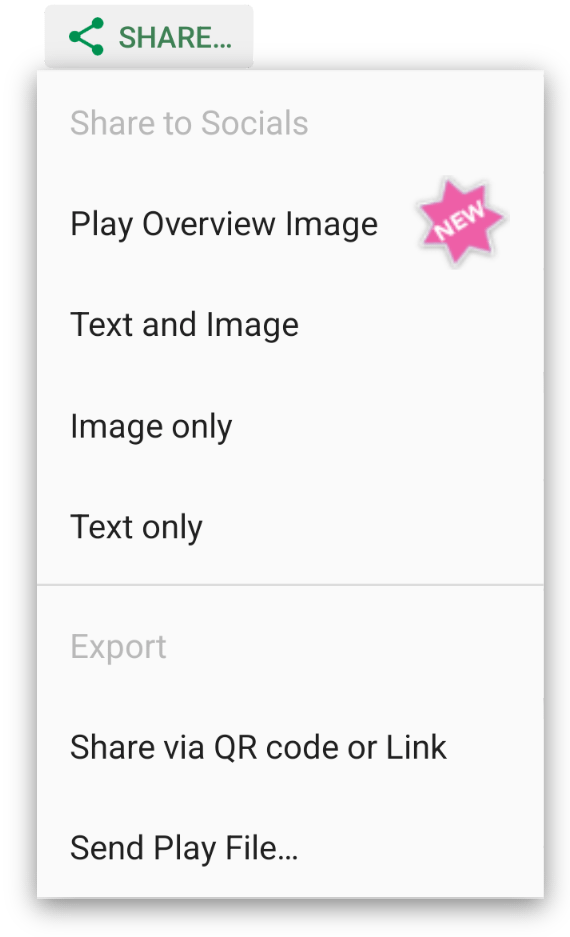
To access the Play Overview Image, tap the Share button on a play’s overview screen.
We’ve cleaned up the menu that appears from this button, to offer clear choices for sharing to socials, and exporting the play. We’ve also made all sharing options work better with a wider range of apps.
Choose Play Overview Image from this menu to open the new view.
The old sharing option (previously called “Social Share…“) is now available via the Text and Image, Image only and Text only choices. When selecting Image only the sharing text is copied to the clipboard automatically.
Play Overview Image options
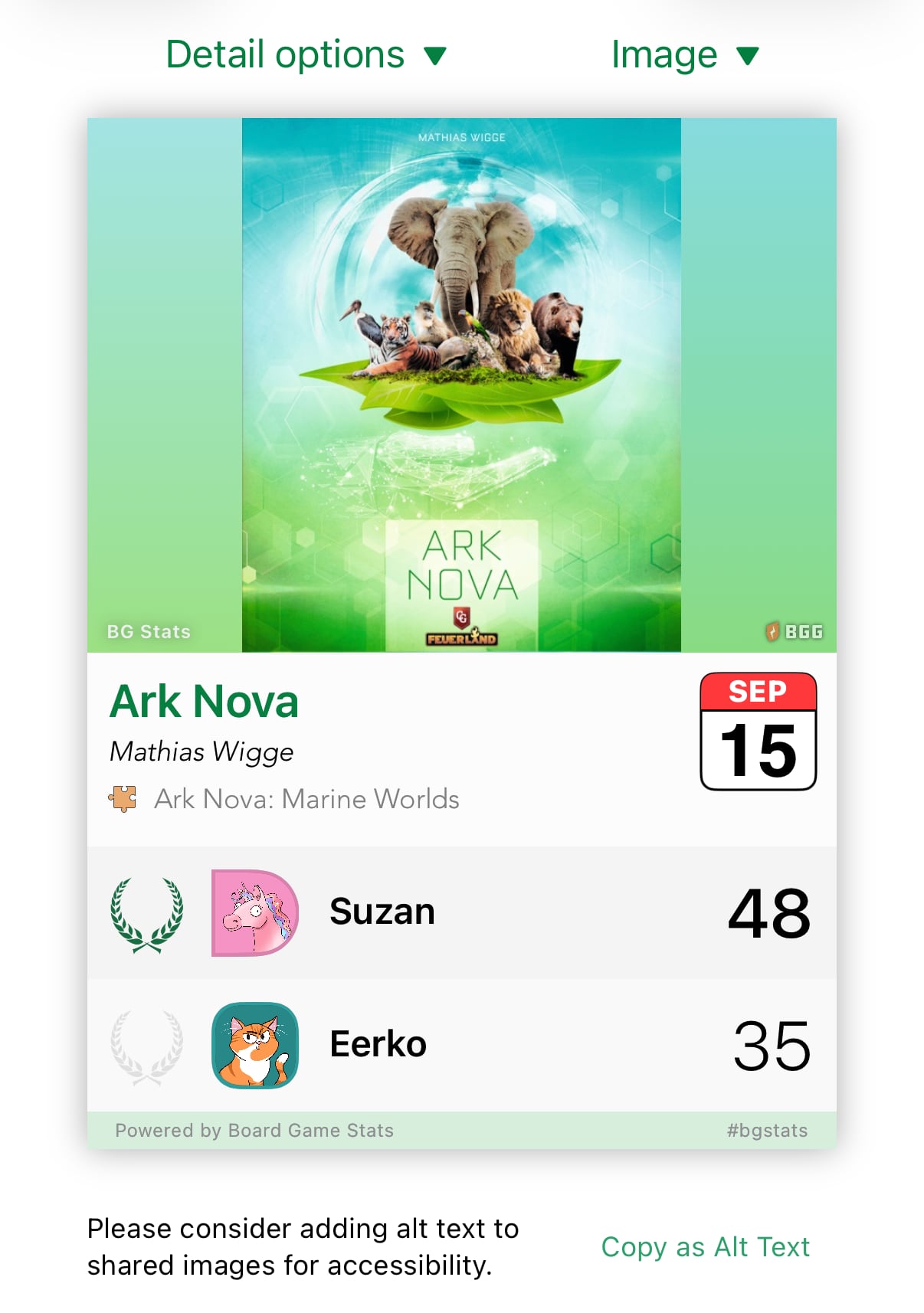
The Play Overview Image displays the image for the game, or one of your own play images of your choice. You can choose from two different styles of backgrounds.
Next to the game name, the date of play is displayed. All other data is optional: Designers, Expansions, Boards/Variants and Play duration can all be added to the view.
The bottom optionally list all players, or a summary of the number of players and best score. When listing the players, you can choose to show or hide the player names, avatars, and roles.
Configure the view to your liking with the Detail options and Image dropdowns. Settings are remembered for your next share!
You can read all details about this new screen on our new explanation page.
The updated 3×3 Image
We’ve updated the 3×3 Image screen with a cleaned-up layout and new options.
At the top you’ll find options to set the number of Columns and Rows for the grid, from 1 to 12. Next to that you’ll find the Badge dropdown.
At the bottom you’ll find other options. New, next to the Border size, is the Border color. This dropdown lets you choose between black, white, a random color, and a color you select yourself from the color picker.
Custom items you add to the grid and games without images have a new option as well: you can now select their background color from the color picker too!
You can read all about the 3×3 Image screen on our updated explanation page.

